






How to Add a New Agent / User?
1. Navigate to Settings > Agents and click on + Add New Agent at the top corner of the screen.

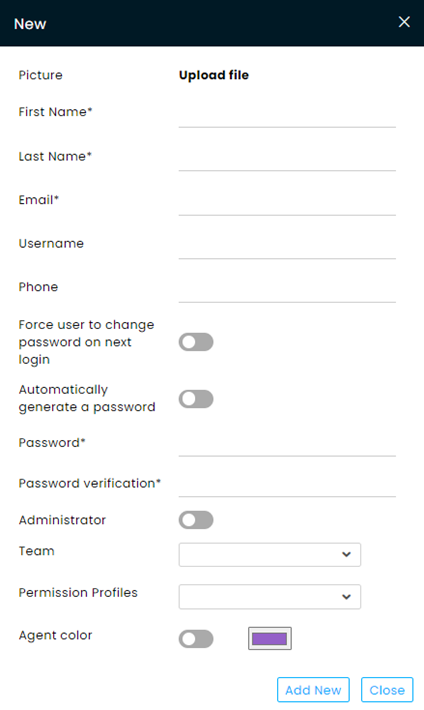
a. Once the new agent is in the system, these settings can be changed.
b. Unless otherwise specified, the email address is the Username for logins.
c. The Password can be chosen by the onboarding admin and given to the new agent for the initial login or toggle the password auto-generator to send to the new agent an initial password.
New Agent Email Confirmation
The agent will receive an email from your company (if not set up, it will be sent from the Default sender) welcoming the new agent to the company.
The new agent needs to click the Confirm your account button, which will redirect the new agent to the CommBox account login page.
Once the agent has been verified, edit the profile of the new agent, appoint them to teams, make them choose a new password, etc.
Number of Agent Licenses
Note: Prior to adding new agents, verify that you have available licenses in your contract by navigating to Settings > Account. To add additional licenses, please contact your customer success manager.

What Is a Team?
Teams are groups of users that a customer can create in their “organization”. Users in a team can filter different system areas and view only information defined for specific teams.
Within each team, you can define specific permissions and profiles that suit its unique tasks.
Creating New Teams
At the CommBox platform, navigate to Settings > Teams to define the organizational team’s structure, settings, and uniformed assets. Any changes in the settings at this level will affect all the agents and teams in the organization.
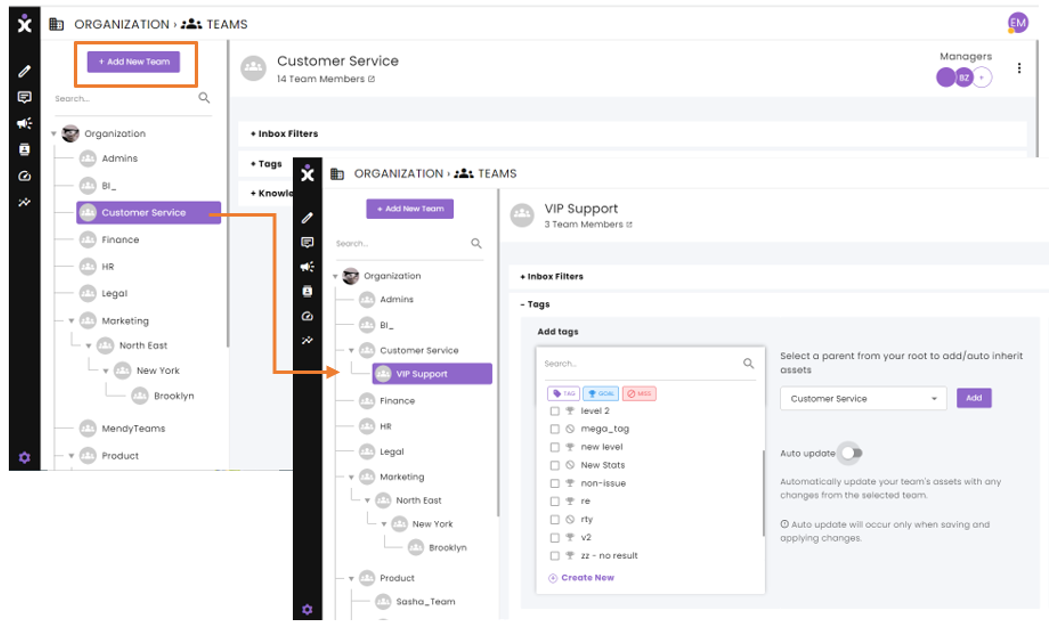
- At the CommBox platform, navigate to Settings > Teams, and click the + Add New Team button at the top of the tree diagram.
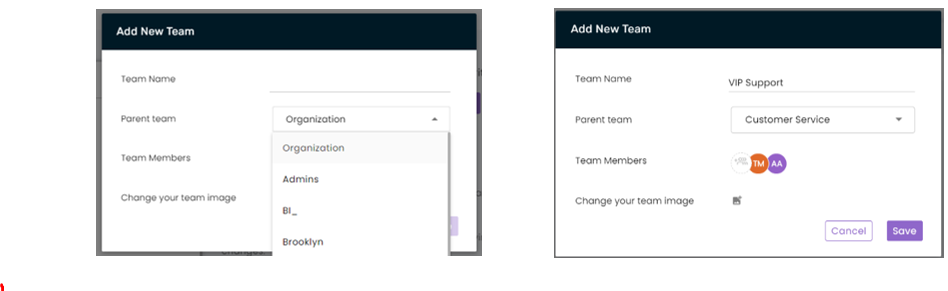
- At the new team dialog box, enter the following information:
a) A unique name for the team.
b) Set the hierarchy position by selecting the Parent Team under which this new team will function.
c) Add members to the team by clicking on the Assignment circle, selecting agents, and clicking Save.
d) Upload an image for the team (optional)
e) Click Save.

Editing or Deleting Teams
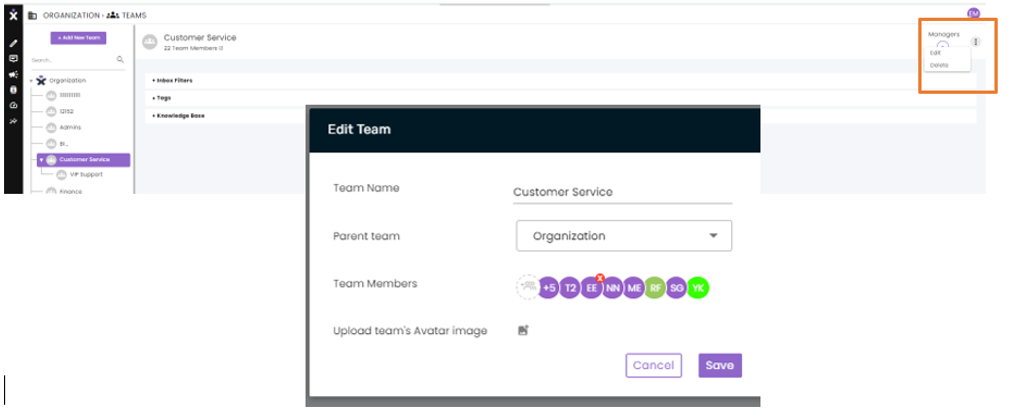
- At the CommBox platform, navigate to Settings > Teams and select the desired team from the tree diagram at the left pane.
- Click the 3-dots drop-down menu at the top right corner, followed by Edit or Delete.
- When editing, you can change the Team’s name, shift the position of the team’s hierarchy, add or remove agents, and upload a new image for the team.
- To remove a team member, hover over the agent’s initials and click the small red X that appears in the corner.
- To add members to the team, click on the Assignment circle and select the agents for the team.
- Click Save.
 Note:
Note:a) When changing the team’s hierarchical position, “child” teams will move along with their “parent” team.
b) Access to inbox filters, tags, and Knowledge-based items is dependent on the team’s position in the organizational structure. When moving a team to a different branch, access to assets from the original branch may no longer appear.
c) When deleting a team, all its child teams will move one level up in their hierarchy.
Copying Capabilities from a Source Team
You can choose the parent team whose assets you want to inherit for your team. The “Add” button next to Conversation filter, Tags, and Knowledge base will copy the assets from the chosen parent team and paste them into your team: