






Managers can define a new status or change an existing status for agents. The agent’s performance is measured and reflected in various reports based on the use of statuses.
What Is an Agent’s Status?
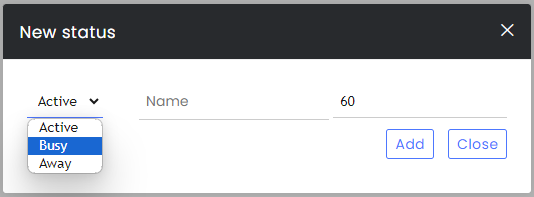
Agent Statuses are divided into three categories: Active (green), Busy (red), and Away (orange). Additional statuses can be added into these categories to help the organization create a better reflection of the business operations in the different reports. For example, add the Away status “On break” or the Busy status “In a meeting” to better describe the agent’s current status and have a meaningful report about the agent’s time.
Note! The more agents are careful to switch themselves to the correct status, according to whether they are active/inactive, the better and more insightful the reports will be for the agents and for the organization.
Team managers can create and assign statuses to different agents, and the agents can then view and select the relevant statuses from their Personal Settings menu (the circle with their initials).
Adding or Editing Agent Statuses
Click on the Settings icon and under the organization menu, choose Agents Status.
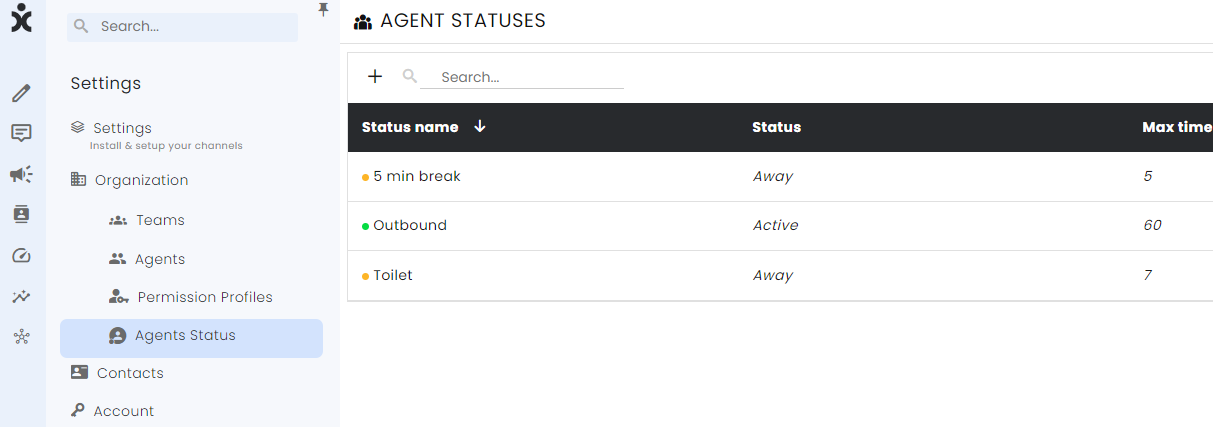
To add a new status:
1. Go to Settings > Agent Status and click on the + on the left corner.
2. Choose a category, enter a short name for the status, and click Add (Optional: You can define a maximum time for the activity).
Editing or Deleting an Existing Status
1. Go to Settings >> Agent Status and hover over the desired status.
2. Click on the pencil icon at the end of the row, edit the status, and click Save.
3. To delete the status, hover over the desired status, click on the delete icon at the end of the row.
Reviewing Agents Statuses in the Dashboard
At the main menu sidebar, click the Dashboard icon. At the lower section, at the Agent Table, you can see all agents with their current status, and how long they were at that status.
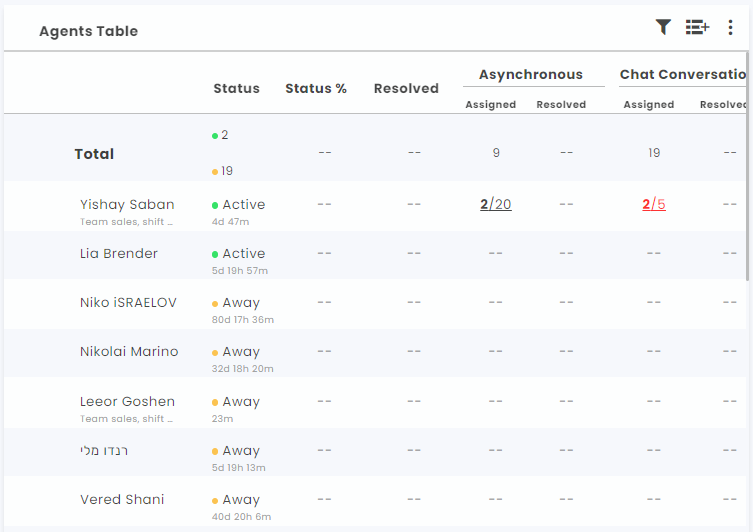
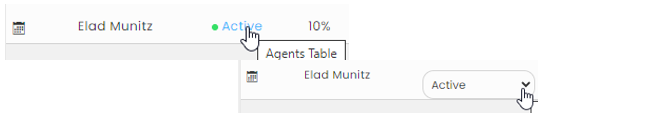
Click on the displayed status to change it for the agent:
Agents Attendance Report
To view the Agents Attendance Report, hover next to the desired agent and click on the Calander icon that appears next to the name.

Alternative way: Navigate to Insights > Agents, select the desired agent from the list, and click on the Agents Attendance Report.
Agent Statuses and Automatic Assignment
Team managers can add additional statuses to specify further which agent statuses are needed to be in place to receive incoming traffic. The Automatic Assignment module delegates the incoming traffic to the different agents. By default, Active (green) statuses get regular and special automatic assignments, and Busy (red) statuses only receive special assignments.
1. Navigate to Settings >> Automation >> Auto Assignment.

2. Remove a status from the list by clicking the X next to it: