






Overview
Admins and team leaders can manage the Flow Builder permissions granted to the different agents to enable the delegation of some of the responsibilities involved in the bot’s creation while maintaining control of the entire process.
Setting Permissions
Setting permissions can be done at the specific agent level or as a Profile that can have many permissions and is assigned to many agents.
Click here for general information about Permission Profiles.
In this article we concentrate on the Flow Builder (studio) permissions.
Assignment of different permission levels:
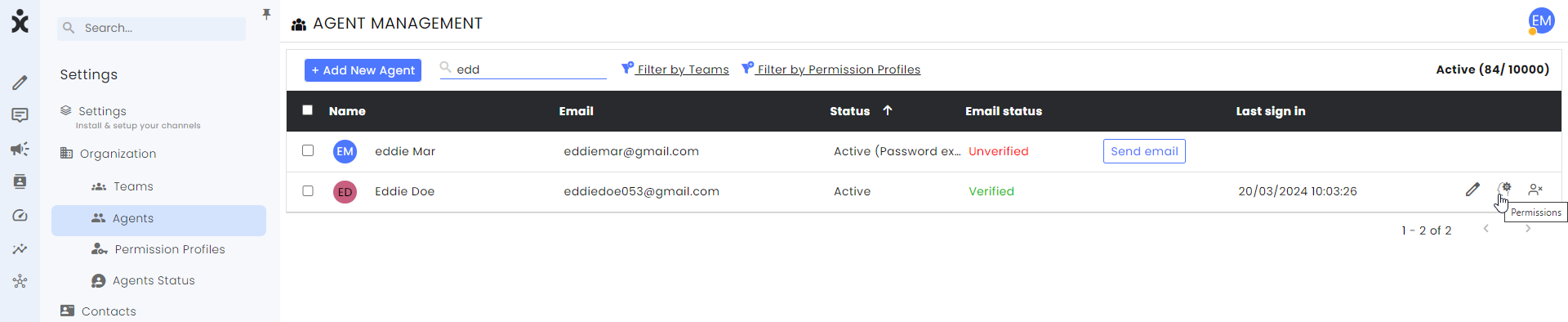
- Navigate to Settings and select the Agents Management section.
- Locate the specific agent, hover at the end of the line, and click on the permissions icon.
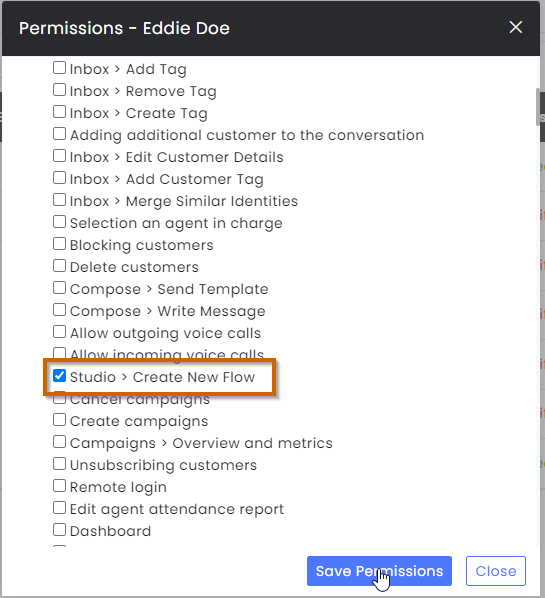
- To enable the agent to create a new flow, select the General permission section, check the Studio > Create New Flow box, and click Save Permissions.
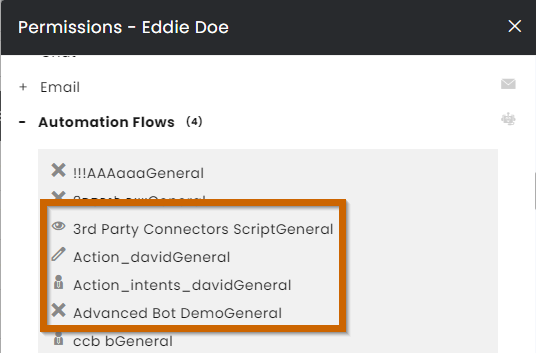
- At the Automation section, click on the icon next to each flow to assign the desired permission level.
X – Block Access
Manager icon – Full Access
Pencil icon – Editing Text Only
Eye icon – Read Only
Selecting Editing Text will enable the agent to change texts and add media content. The agent will not be able to change the flow’s components or functionality. A label will appear at the top of the flow indicating the status.

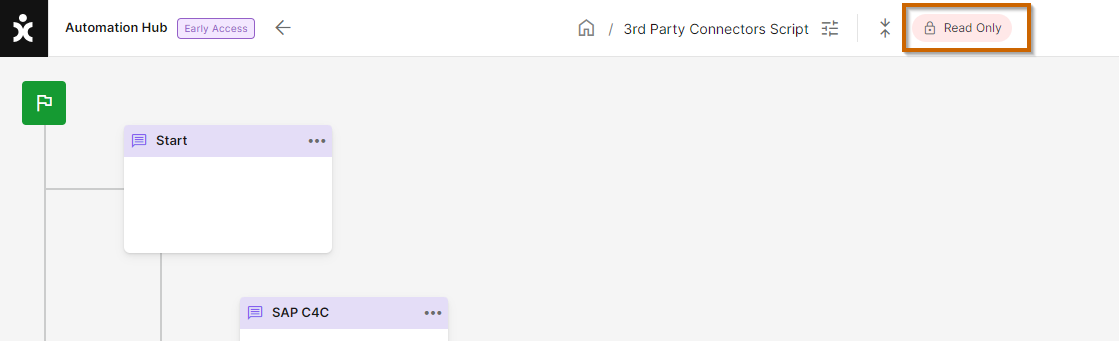
Selecting Read Only will enable the agent to see the flow but not to edit it. A label will appear at the top of the flow indicating the status.
To learn more about Permission Profiles, click here.
{
“@context”: “https://schema.org/”,
“@type”: “HowTo”,
“name”: “Bots Permissions in CommBox”,
“description”: “Guide on how to set up and manage permissions for agents regarding bot (Flow Builder) access in CommBox.”,
“url”: “https://www.commbox.io/customer-portal/bots-permissions/”,
“step”: [
{
“@type”: “HowToStep”,
“name”: “Navigate to Agent Permissions”,
“url”: “https://www.commbox.io/customer-portal/bots-permissions/#setting-permissions”,
“text”: “Go to Settings and select the Agents Management section to start configuring permissions for individual agents or profiles.”
},
{
“@type”: “HowToStep”,
“name”: “Enable Creation of New Flows”,
“url”: “https://www.commbox.io/customer-portal/bots-permissions/#setting-permissions”,
“text”: “Under the General permission section, check the box for Studio > Create New Flow and click Save Permissions to allow agents to create new flows.”
},
{
“@type”: “HowToStep”,
“name”: “Assign Flow-level Permissions”,
“url”: “https://www.commbox.io/customer-portal/bots-permissions/#setting-permissions”,
“text”: “In the Automation section, click the icon next to each flow and choose among permission levels: Block (X), Full Access (manager icon), Edit Text (pencil), or Read Only (eye icon).”
},
{
“@type”: “HowToStep”,
“name”: “Understand Permission Levels”,
“url”: “https://www.commbox.io/customer-portal/bots-permissions/#setting-permissions”,
“text”: “Edit Text allows modifying only texts and media, not structural flow changes; Read Only lets the agent view the flow but not make changes.”
},
{
“@type”: “HowToStep”,
“name”: “Use Profiles for Consistency”,
“url”: “https://www.commbox.io/customer-portal/bots-permissions/#overview”,
“text”: “Instead of individual settings, you can configure a Permission Profile that aggregates multiple permissions and assign it to many agents for consistency.”
}
]
}