





The Audit Trail Report provides a detailed chronological record of the activities within the organization, which plays a critical role in security and compliance events.
The audit logs in the report enable admins to review the actions performed by organization members and identify suspicious activities and potential violations.
The logs are updated in real-time to reflect the latest system activities and changes. Admin can download Excel reports for further analysis.
How to View the Report?
Navigate to the Settings menu >> click Privacy and Security, and select Audit trail logs:

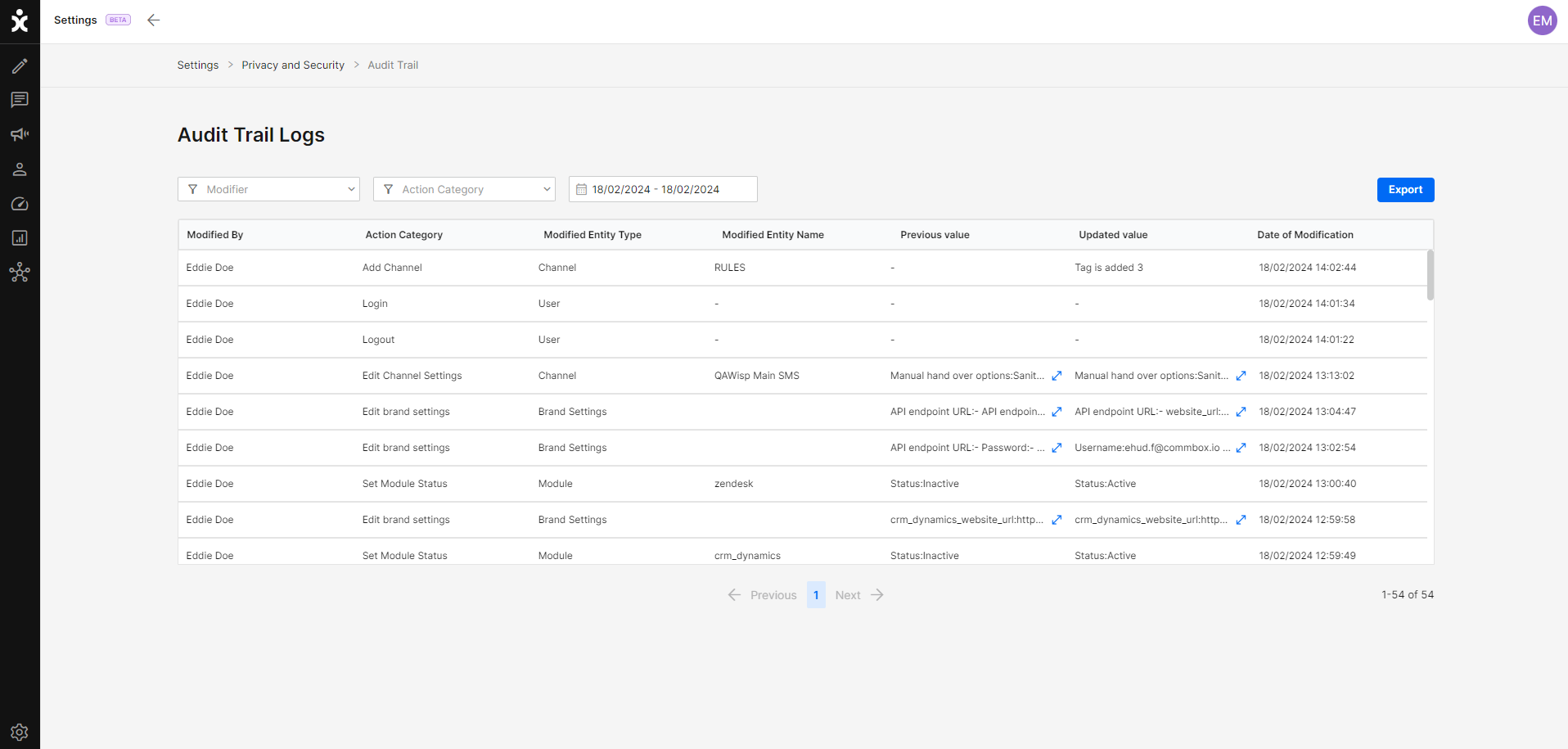
After clicking Audit Trail Logs, the logs window appears:
Information Logged
Each entry in the Audit Trail Log contains the following information:
Modified By – Lists the entity responsible for the change: Agent’s name, bot, or system.
Action Category – Any type of action performed in the system, including adding, editing, setting, or deleting an entity, logging in or out, activating or blocking a user, failing to log in, etc.
Modified Entity Type – Lists the modified organizational entity type, such as conversation, customer, agent, module, setting, campaign list, and Login/Logout.
Modified Entity Name – Lists the modified entity’s name in CommBox: Conversation ID (widget), customer name, agent name, module name, setting name, and campaign name.
Previous value – Lists the initial value of the entity before modification.
Updated value – Lists the new value of the entity after modification.
Date of Modification – Lists the date and time when the modification occurred.
Creating an Audit Trail Report
- Navigate to Settings >> Privacy and Security and click Audit Trail Logs.
- Focus your audit by using the filters:

a. Select the Modifier(s)- those that made the changes in the system.
b. Select the Action Category – the type of action performed by the modifier. - Select a date range for the audit.
Note: The date range is limited to 7 days. - To export the data, click the Export button at the top.
The Excel report will be in the Download folder.

Note: Do not leave the page until the report is generated.