





CommBox new Flow Builder (conversation script) presents a gateway to effortlessly crafting powerful chatbots. Our intuitive and user-friendly platform incorporates advanced AI technology and innovative user experience, enabling tech-savvy and non-technical users to create impactful bots.
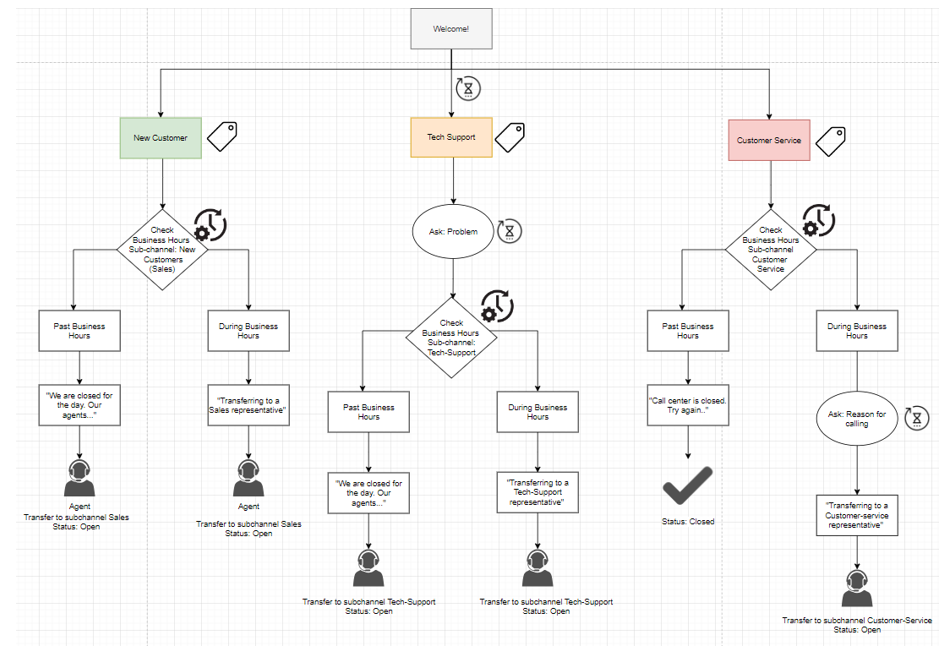
In this beginner’s guide, we start with the basics, offering step-by-step instructions that make bot creation accessible to all without the need for coding. We describe the canvas, the different panes, and the functionalities as we build a real bot that can help your organization divert incoming traffic to different departments.
Bot builders, automation managers, and developers can use our Flow Builder to create an extensive automation system that can integrate API calls, add AI knowledge base items, identify intents, and, coming very soon, enable our Autonomous Agent to handle all interactions.
Prerequisites
Incorporated CommBox Features
CommBox has many powerful capabilities that the bot can incorporate. For this guide, we utilized the following capabilities:
Business Hours
Chat Channels and Sub-Channels
Tags
If you are not familiar with these features, read the above-linked guides for some general information. You’ll need to set up these modules to enable our demo bot to function.
Set Up a Chat Channel
To preview the bot interaction, we use a Chat channel. If you don’t use chat for communication, set one up by navigating to Settings > Chat and clicking the + Chat Channel button at the top. Name the channel and activate the needed features that you want the bot to perform.
Planning Phase
Our platform is in itself a great planning tool for the actual bot, laying out the steps in a logical order and then filling in the details.
Bot Scheme
User Guides
Refer to the following guides:
- Creating a Basic Bot
- Flow Builder Permissions: Managers and team leaders can manage the flow builder permissions granted to various agents.
- Importing Flows
{
“@context”: “https://schema.org/”,
“@type”: “HowTo”,
“name”: “How to Create a Bot in CommBox”,
“description”: “Step-by-step guide for creating a bot using CommBox’s Flow Builder, from prerequisites to defining logic and previewing flows.”,
“url”: “https://www.commbox.io/customer-portal/creating-a-bot/”,
“step”: [
{
“@type”: “HowToStep”,
“name”: “Prerequisites”,
“url”: “https://www.commbox.io/customer-portal/creating-a-bot/#prerequisites”,
“text”: “Make sure you have the required CommBox features enabled (business hours, chat channels & sub-channels, tags). If you are unfamiliar with these, review their respective guides.”
},
{
“@type”: “HowToStep”,
“name”: “Set Up a Chat Channel”,
“url”: “https://www.commbox.io/customer-portal/creating-a-bot/#set-up-a-chat-channel”,
“text”: “Go to Settings → Chat and click “+ Chat Channel” to create a channel. Name it and activate the bot capabilities you require.”
},
{
“@type”: “HowToStep”,
“name”: “Planning Phase”,
“url”: “https://www.commbox.io/customer-portal/creating-a-bot/#planning-phase”,
“text”: “Use the CommBox interface to sketch the logical flow of the bot — decide on the major steps and branches before filling in details.”
},
{
“@type”: “HowToStep”,
“name”: “Bot Scheme (Flow Layout)”,
“url”: “https://www.commbox.io/customer-portal/creating-a-bot/#bot-scheme”,
“text”: “Visualize and build the conversation structure using the flow canvas, defining entry points, decision nodes, and transitions.”
}
]
}