





What Are Rules?
A rule is a chain of automatic actions that occur when a trigger is activated. The actions will operate according to predefined conditions. Using rules reduces the need for manual intervention by performing automatic actions.
Examples of actions defined in rules are repetitive tasks such as tagging conversations and messages, prioritizing conversations based on keywords, routing to a specific channel, and more.
Rules can send automatic messages and tags, change conversation status, route to another channel, or activate other applications (for example, chat, etc.). During conversations with customers, the rule is activated every time a term/phrase is mentioned.
Rules Components
Each rule consists of three parts:
Trigger: An event that activates the rule.
Condition: A requirement that must be met for the rule to operate.
Action: An event that happens because of the defined trigger and condition.
A Rule Set comprises a few Rules that are activated together.
For example:
Rule #1: “When a customer starts a new conversation [trigger] in the support team’s email channel [condition 1], and the subject contains “refund” [condition 2], then tag the conversation with a tag called “Finance”[action 1] and transfer the conversation to the email refunds channel [action 2].”
Rule #2: When a new tag “Finance” is added [trigger] in the email refund channel [condition 1], and the body contains “bad service” [condition 2], then set priority to level 1 [action 1].
Since Rule #1 is processed first, the conversation will be tagged, which allows for Rule #2 to be triggered and the conversation to be prioritized at the designated channel.
Creating a new Rule Set
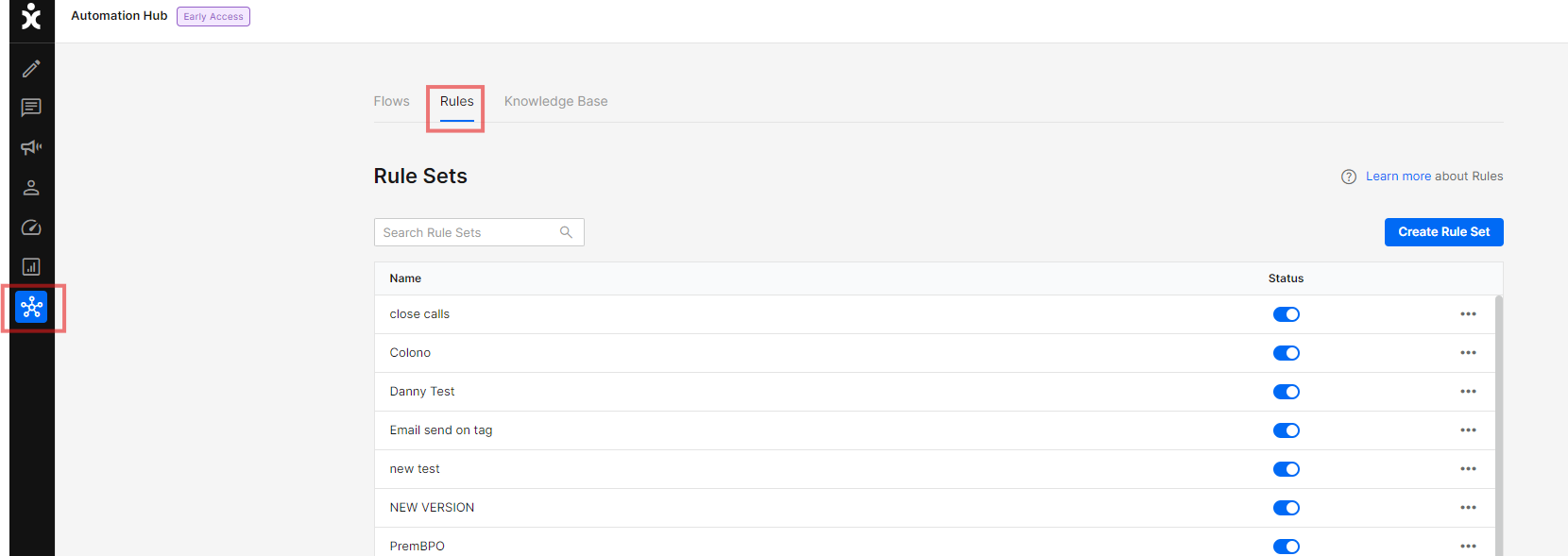
Click the Automation Hub icon on the main menu sidebar and select the Rules tab, or alternatively, navigate to Settings and click the Rules module:
Click Create Rule Set at the top corner to establish a group of rules:
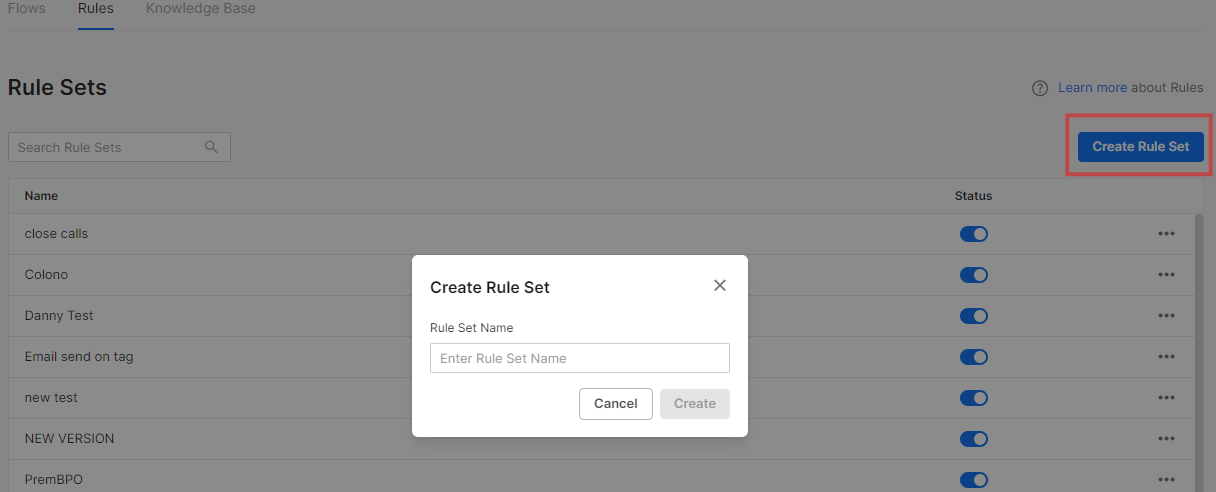
Enter a name for your new Rule Set and click Create.
Creating a new Rule
To create a new Rule, you’ll need to select a trigger, relevant conditions, and desired action.
- In the chosen Rule Set, click Add Rule at the top corner of the screen.
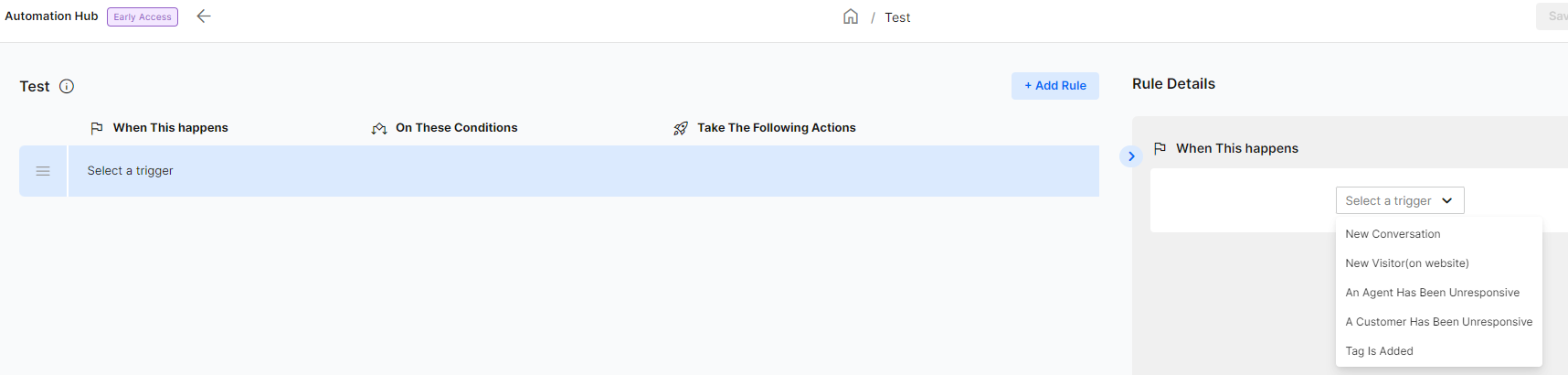
- At the Rules Details pane, select the trigger for this rule.

- The trigger could be one of the following:
- New Conversation: A customer starts a new conversation on one of the communication channels.
- New Visitor: A new visitor to the website where the Chat app. is embedded. This trigger can work even before the customer clicks on the Chat icon.
- An Agent Has Been Unresponsive: During a conversation on one of the communication channels, the agent became unresponsive for a period of time defined by the rule.
- A Customer Has Been Unresponsive: During a conversation on one of the communication channels, the customer became unresponsive for a period of time defined by the rule.
- Tag Is Added: A tag is added during a conversation on one of the communication channels.
For the chosen trigger, click Add Condition and select a relevant Condition from the dropdown list. The condition(s) will have to take place in order for the rule to be activated.
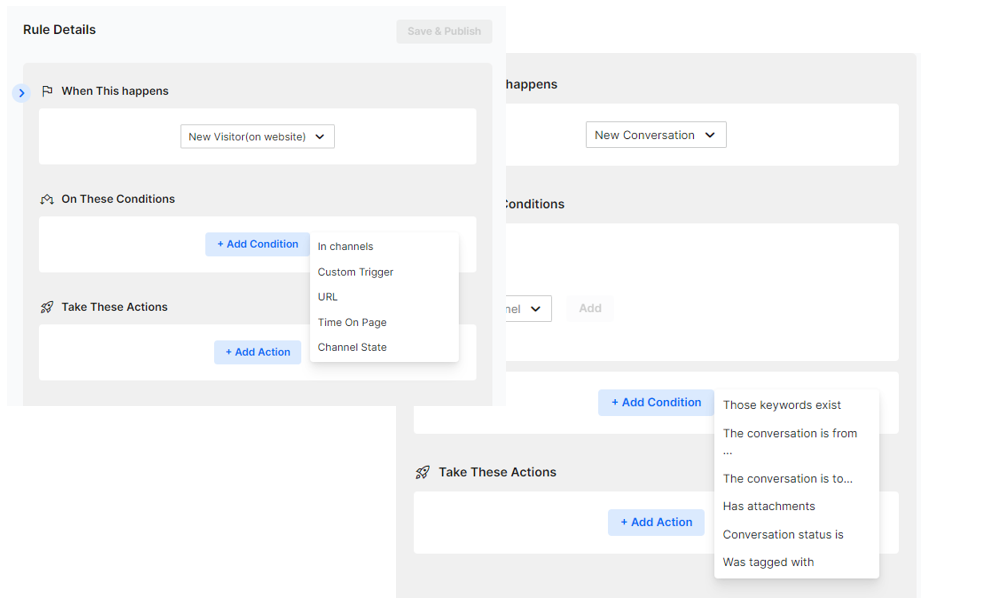
Available Conditions
Select from the following conditions:
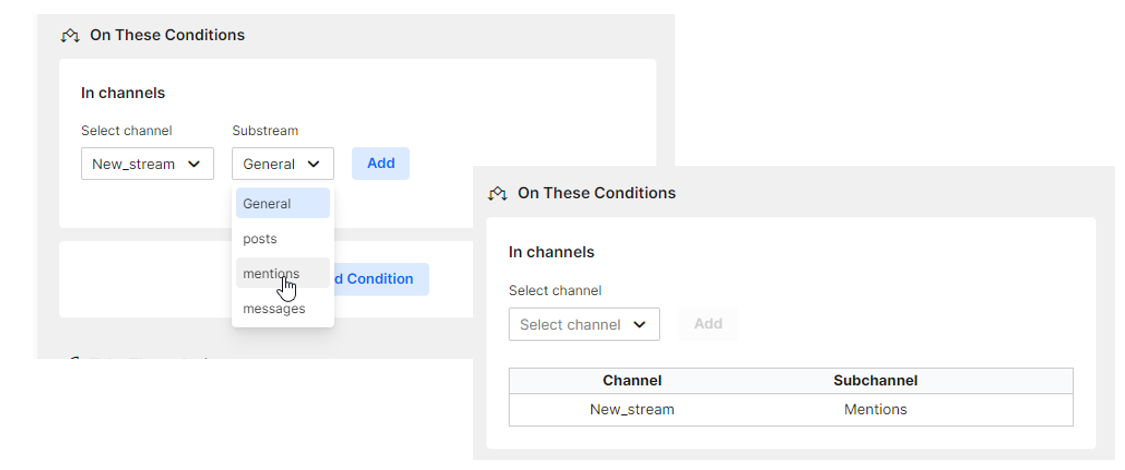
A. In channels
Specify the communication channel(s) for the rule and click Add.
Note:
- This field is mandatory for the New Conversation and Unresponsive Agent/Customer triggers.
- A new visitor trigger only works with the Chat channels, Navigator, and Contact Us Apps.
B. Those Keywords Exist
List the keywords mentioned by the customer that will activate an action and click Add.
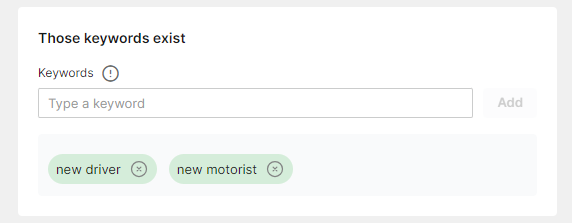
- Keywords in email channels are identified in the email’s title and body separately. In all other channels, keywords are identified within the message body.
- A comma should follow terms or a group of words.
For example:
Entering “new driver,” will activate the rule only if both words appear as a phrase.
Entering “new, driver,” will activate the rule if one or both words appear in the conversation. - Capitalization is not an affecting factor.
C. The Conversation is from
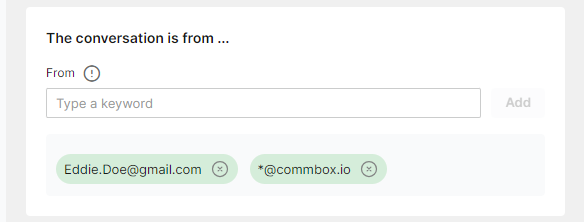
You may enter multiple email addresses or phone numbers (for WhatsApp and Text/SMS channels) separated by a comma and click Add.
For the whole domain, enter an asterisk followed by the domain ending. Ex: *@domain.com
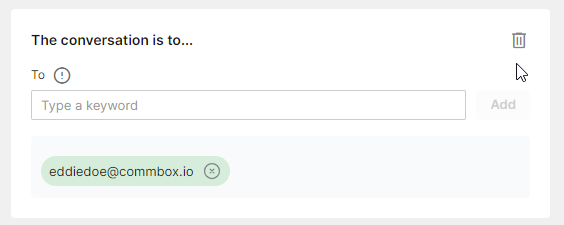
D. The conversation was addressed to
Enter the email address or the phone number the communication was sent to and click Add.
You may enter multiple email addresses or phone numbers (for WhatsApp and Text/SMS channels) separated by a comma. For the whole domain, enter an asterisk followed by the domain ending. Ex: *@domain.com
E. Conversation has an attachment
Toggle On to mark all conversations with an attachment. Toggle Off to mark all conversations with no attachments.

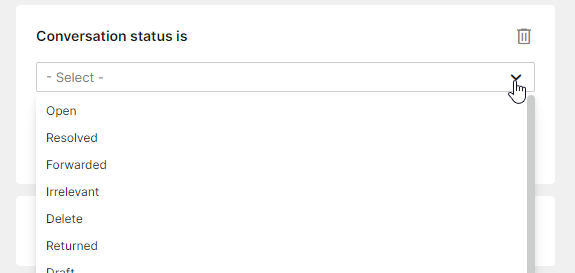
F. Conversation’s Current Status is X
Select from available statuses.
G. Was tagged with
Select the specific tag that when it is tagged to a conversation, the rule is triggered.
You may search for specific tags by name or click on the tag categories to show/hide related tags.
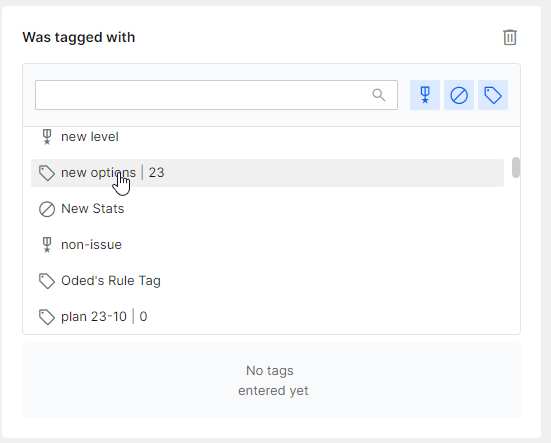
Note: Only one tag can be selected per rule.
H. Custom Trigger
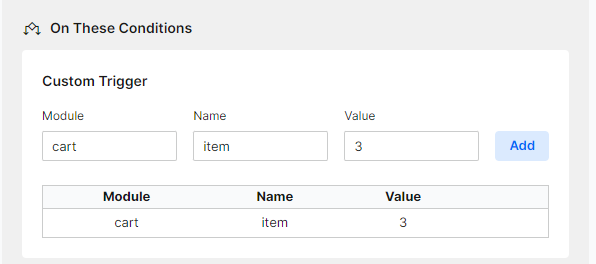
Visitors to the website can take a designated action that will trigger the rule. For example, when the customer sends the 3rd item to the shopping cart, the rule will activate an action such as opening the chat, tagging the visitor, etc.
In this example, the module is “cart,” the name is “item,” and the value is 3.
Rules User Guide
- For additional instructions and examples, click the Rules User Guide.